Everything you need to set up an AI agent that texts back leads on SMS, WhatsApp, Instagram, and Facebook Messenger — and knows when to pick up the phone instead.
10 min readUpdated 2026-02-26
The Chat Assistant is the text-based half of every Voxinity agent. Once enabled, your AI can hold full two-way conversations with leads over SMS, WhatsApp, Instagram DMs, and Facebook Messenger — using the same knowledge base, persona, and memory as your voice agent. It can also escalate to a real phone call when the lead asks for one.
This guide walks you through every section of the Channels tab in the Agent Editor, top to bottom.
30-second walkthrough — every section of the Channels tab, top to bottom. Auto-loops, no sound needed.
1. Enabling the Chat Assistant
Open any agent → Channels tab. Click the green CHAT ENABLED toggle at the top. That single toggle unlocks the whole text-based pipeline — activation tag, channel selection, response style, outbound-call trigger, and human-like texting controls.
What changes when chat is enabled?
Your CRM (LeadConnector) starts forwarding inbound messages for tagged contacts to this agent. The agent will reply on the channel the lead reached out on — no manual routing needed.
2. The Activation Tag — How the AI Knows When to Take Over
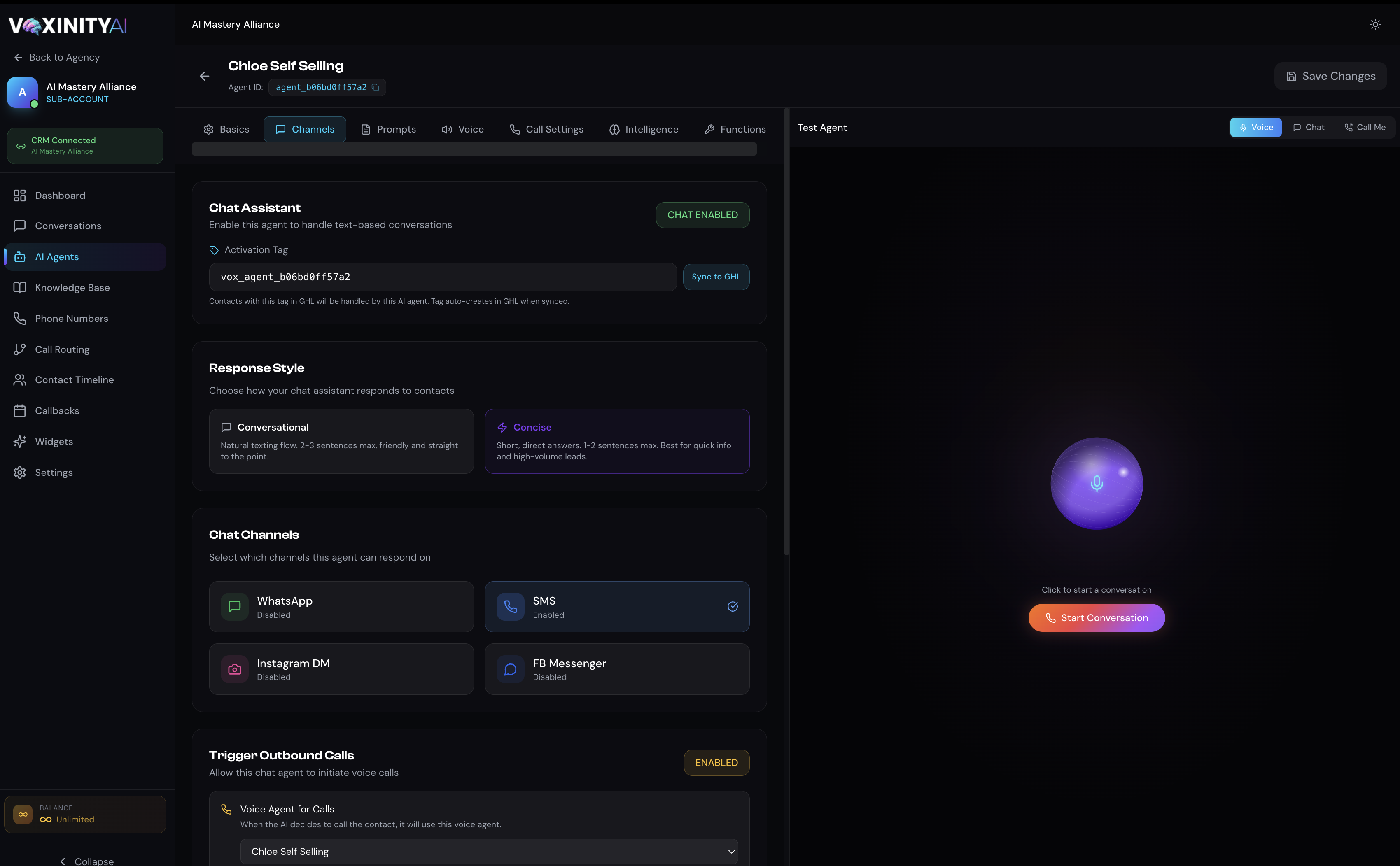
Each chat agent has a unique Activation Tag (something like vox_agent_b06bd0ff57a2). When this tag is applied to a contact in your CRM, that agent automatically picks up all incoming messages from that contact. When the tag is removed, the AI stops responding instantly — no rogue replies.
Channels tab — Chat Assistant, Activation Tag, Response Style, and Chat Channels in one panel.
Syncing the tag to your CRM
Voxinity auto-generates the activation tag for every chat-enabled agent (you don't need to invent one).
Click Sync to LeadConnector — the tag is created inside your LeadConnector location instantly so you can use it in workflows.
In your CRM workflow (e.g., 'Lead Submitted Form'), add an 'Add Tag' action and pick the synced tag.
From that moment on, any inbound message from that contact is handled by this AI agent.
Tag-Audit chip
Every conversation card in the Conversations sidebar now shows a small green tag-icon line: 🏷 vox_agent_xxx → Chloe · SMS. It tells you at a glance which activation tag matched the contact to which agent on which channel — no more digging through logs to debug 'why did this agent fire?'
Running multiple chat agents in one sub-account?
Each agent must have a unique activation tag. If two agents share a tag, behavior is undefined — only one will respond. Channel scoping (next section) handles the case where two agents serve different channels with the same tag-style workflow.
3. Response Style — Conversational vs Concise
Right below the activation tag, you'll find two response-style cards:
Conversational
Natural texting flow. 2–3 sentences max, friendly and straight to the point. Best for nurture conversations, sales follow-ups, and rapport-building.
Concise
Short, direct answers. 1–2 sentences max. Best for quick-info bots (pricing, hours, address) and high-volume lead qualification.
This is a hard limit — the AI's reply is post-processed to enforce the sentence count. Pick the one that matches your audience's expectation.
4. Chat Channels — Pick the Apps the AI Can Reply On
The Chat Channels grid lets you scope each agent to specific messaging apps. The 4 supported channels are:
SMS
Standard text messaging through your connected Twilio number.
WhatsApp
Inbound WhatsApp messages routed through your CRM's WhatsApp integration.
Instagram DM
Direct messages received on your business Instagram (via CRM).
FB Messenger
Messages from your Facebook Business Page (via CRM).
Strict channel scoping (Feb 2026)
If you enable only SMS, the agent will ONLY respond on SMS — even if the contact has the activation tag and writes you on WhatsApp. Enable all 4 to handle any channel. Live Chat Widget messages go through a separate pipeline and are NEVER affected by this setting.
Email / Phone / Notes are always ignored
Voxinity will never reply to LeadConnector email threads, phone-call logs, or contact notes — even if the activation tag is present. Only the 4 chat channels above qualify.
5. Trigger Outbound Calls — Let the Chat AI Pick Up the Phone
Scroll down past Chat Channels to find the Trigger Outbound Calls section. This is the magic moment where your chat AI hands off to your voice AI — a real phone call placed within seconds of the lead asking for one.
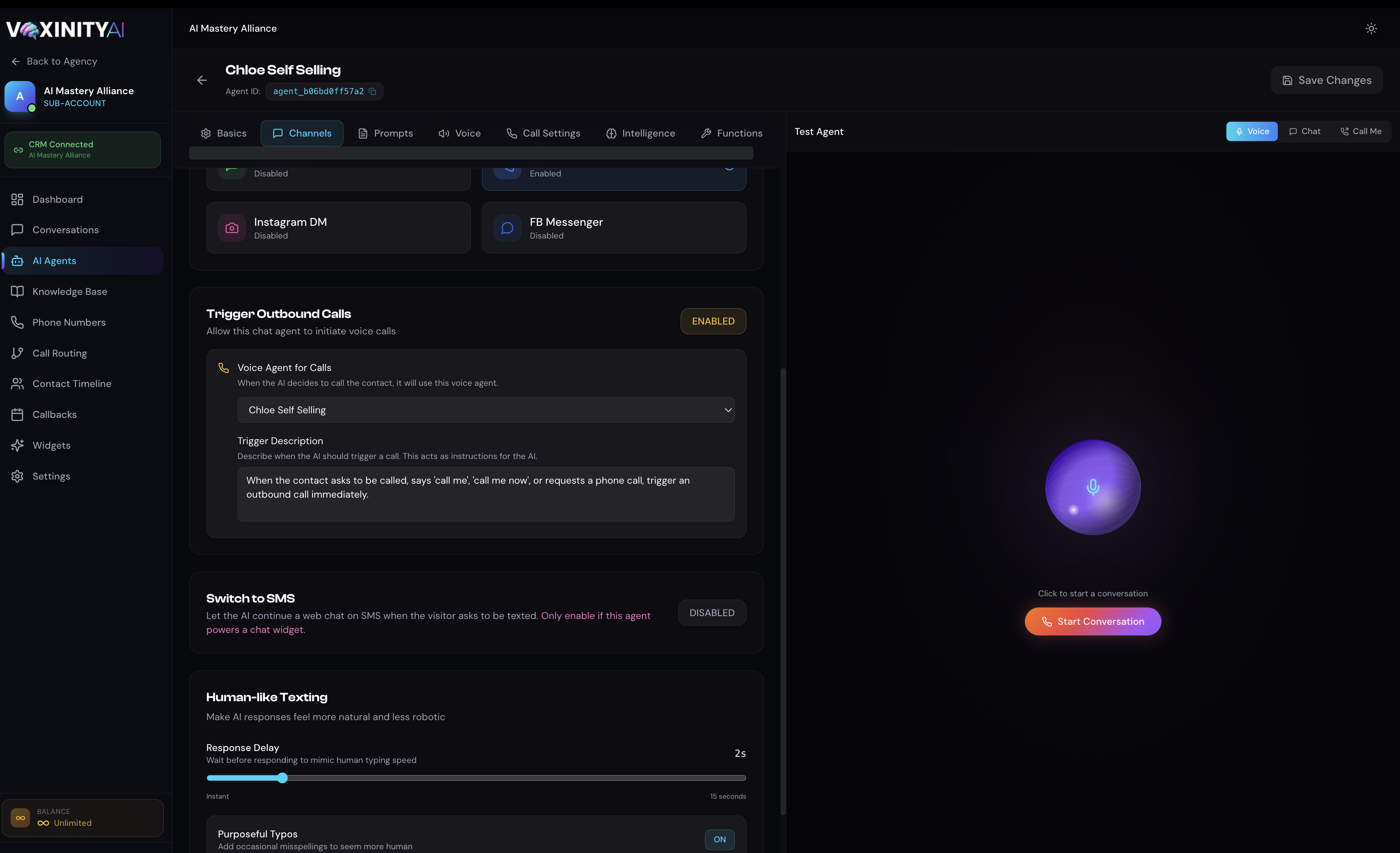
Trigger Outbound Calls, Switch to SMS, and Human-like Texting — all on the same Channels tab.
Setup
Toggle Trigger Outbound Calls to ENABLED.
Pick the Voice Agent for Calls dropdown — this is the voice persona that will be dialing out. It can be the same agent or a different one (e.g., chat agent 'Chloe Self Selling' books, voice agent 'Chloe Closer' calls).
Write a Trigger Description — plain-English instructions that tell the AI exactly when to fire the call. The default is a solid starting point: 'When the contact asks to be called, says call me, call me now, or requests a phone call, trigger an outbound call immediately.'
Customize the trigger
If you want the AI to call ONLY qualified leads, write something like: 'Trigger an outbound call only after the contact has confirmed they are the homeowner AND have shared a budget over $5000.' The AI follows your description literally.
What it looks like in the conversation
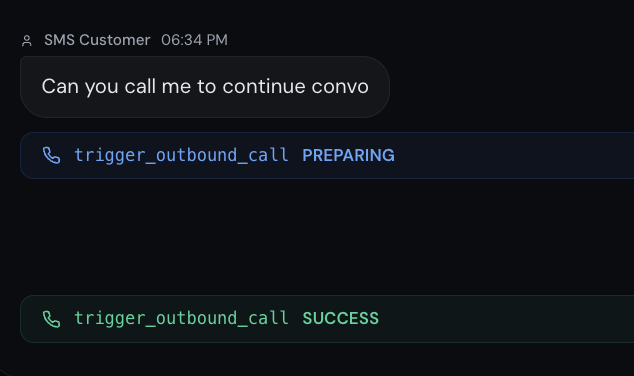
When the trigger fires, you'll see a color-coded badge land in the conversation thread that updates LIVE as the call progresses:
🔵 PREPARING (blue) — Voxinity is provisioning the call. Lands instantly when the AI fires the trigger.
🟢 SUCCESS (green) — The call connected and a real conversation happened. Badge swaps in-place the moment Twilio reports 'completed'.
🟡 WARNING (amber) — The call went to voicemail, no-answer, was busy, or got cancelled. Badge tells you which.
🔴 FAILED (red) — The call could not be placed (DND block, Twilio error, missing phone). Hover for the exact reason.
trigger_outbound_call → PREPARING → SUCCESS / WARNING / FAILED. The badge updates in real time as Twilio reports the call's terminal state.
Why a trigger might FAIL (user-side checks first)
If you see a red FAILED badge — or no badge at all — 9 times out of 10 it's a configuration issue, not a Voxinity bug. Run through this list before opening a ticket:
Common reasons a Trigger Outbound Call doesn't fire
No agent assigned to phone number
The chat agent's outbound voice agent is missing or deleted. Open the chat agent → Channels tab → Trigger Outbound Calls → pick a Voice Agent for Calls. Without one, Voxinity has no AI to put on the line.
No phone number attached to the voice agent
Open the chosen Voice Agent → Phone tab and confirm a Twilio number is bound. Without it, Voxinity has nothing to dial OUT from.
Low / depleted Voxinity AI balance
Bottom-left of the sub-account shows your live balance. Outbound calls require credits — top up under Profile → Billing if it's near zero.
Twilio number is unverified or disconnected
If your Twilio trial expired, the number was released, or your auth token was rotated, Voxinity's pre-flight check rejects the dial in under 1 second. Re-connect under Settings → Twilio.
Contact has no phone on file
If the chat was opened by a Web Visitor who never shared a phone, there's nothing to call. The AI will say so in chat instead of firing.
Trigger Description is too narrow
If your description says 'only call homeowners with budget over $5000' and the lead never confirmed those, the AI correctly skips the dial. Loosen the description if needed.
Contact has DND on Calls & voicemail in LeadConnector
Voxinity reads the contact's DND tab in LeadConnector on every outbound attempt. If 'DND All Channels' OR 'Calls & voicemail' is checked, the call is blocked with a clear FAILED badge in the chat and a red 'dnd_blocked' row in Recent Activity. To allow the call, open the contact → DND tab → uncheck those boxes.
Hover over a FAILED badge in the conversation thread to see the exact error message — it tells you which check tripped so you can fix it in seconds.
6. Switch to SMS — Web Widget Visitors → Text Conversations
If this agent powers a chat widget on your website (Widgets section), enable Switch to SMS to let visitors continue the conversation by text. A visitor types 'can you text me instead?' → the AI sends the SMS → the thread continues on their phone, no context lost.
Only enable on widget-powered agents
Switch to SMS makes no sense on SMS-only agents (they're already on SMS). The toggle is highlighted in pink as a reminder — only flip it ON when this agent is wired into a chat widget.
When the handoff fires, Voxinity automatically applies this agent's activation tag to the LeadConnector contact — so when the lead replies on their phone, the SMS poll loop picks them up seamlessly without you wiring up extra workflows.
7. Human-like Texting — Don't Sound Like a Bot
Below Switch to SMS, two controls make the AI feel less robotic:
Response Delay
Adds a configurable wait (instant → 15 s) before the AI replies. Mimics human typing speed. 2 s is a sweet spot for most use cases.
Purposeful Typos
Adds a small number of natural-looking misspellings to a percentage of replies — the way a real person might type on a phone. Turn off for B2B / professional contexts; turn on for casual nurture flows.
8. Where Do I See the Conversations?
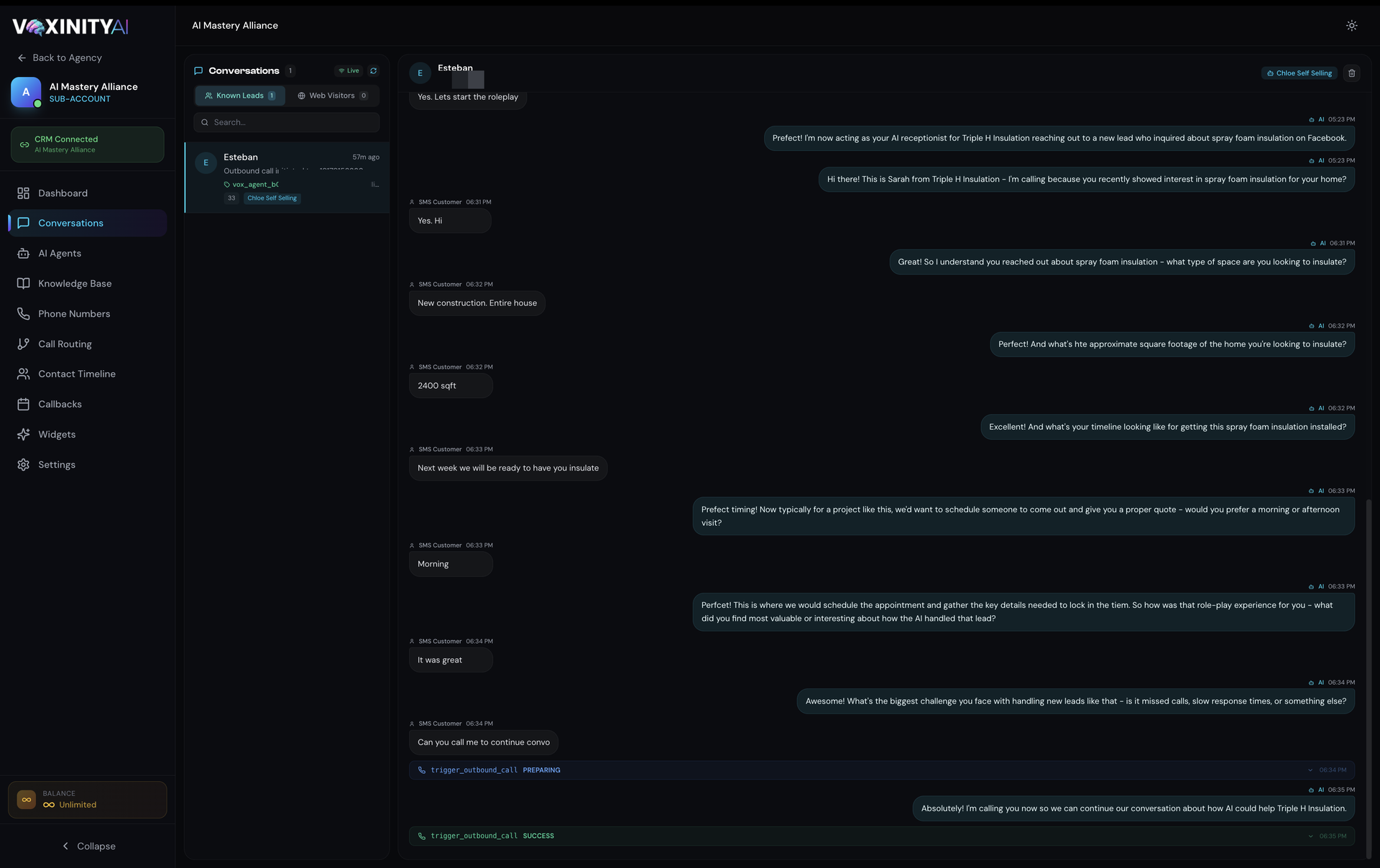
Sub-Account → Conversations. Every chat session (SMS, WhatsApp, IG, FB, widget) lands here in real time. Each card shows:
Contact name + phone (or 'Anonymous visitor' for web widget chats before identity is captured)
Last message preview with a Bot icon if the AI sent it
🏷 Tag-Audit chip — the activation tag + agent name + channel that matched
Channel chips (SMS / WhatsApp / IG / FB / Web)
Message count badge
AI thinking… spinner during processing
Real conversation: the AI nurtures the lead by text, then fires trigger_outbound_call the moment they ask to be called — visible right in the thread.
Click any conversation to read the full thread, see LeadConnector automation messages stitched in, see every tool-call badge (booking, availability, outbound dial) inline, and manually take over if needed.
9. Common Issues & Fixes
Troubleshooting
AI didn't respond to a tagged contact
Check the Tag-Audit chip on the conversation card. If missing → tag not applied in CRM, OR the contact wrote on a channel you didn't enable (e.g., WhatsApp when only SMS is on). Open the agent → Channels → enable the right channel.
AI responded to the WRONG contact
Means an activation tag is applied to a contact who shouldn't be handled. Open the contact in LeadConnector, remove the tag, and the AI stops instantly. Also check workflows that might auto-apply the tag too broadly.
Conversations sidebar is empty even though a contact is tagged
Confirm the contact has a phone OR a LeadConnector contact_id. Recently fixed: phone-less contacts now appear within ~30 seconds. If still missing after 2 minutes, check Sub-Account → Settings → CRM Connection.
Switch to SMS sent the text but the lead's reply isn't being handled
Confirm the SMS target agent has the SMS channel enabled. Without it, the activation tag gets applied but the agent ignores SMS — so the reply sits unread.
Outbound call fires too aggressively
Tighten the Trigger Description with qualifying conditions (budget, location, intent). The AI follows your description literally.
Next steps
Once your chat assistant is dialed in, embed the chat widget on your website (Channels guide → Embed the Chat Widget) and connect your CRM workflows to apply the activation tag automatically. From there, every lead that hits your funnel gets a personalized AI conversation within seconds.