Help CenterChannels (SMS, Chat, Web)Tag Audit — How to Read the Outcome Tags Voxinity Applies

Tag Audit — How to Read the Outcome Tags Voxinity Applies

answered, not answered, ai voice appointment booked, ai chat booked — these are the tags Voxinity writes back to your CRM after every interaction. Here's how to read them.

5 min readUpdated 2026-02-26

After every call and every chat session, Voxinity writes a small set of outcome tags back to the contact in your CRM — and surfaces them in the Tag Audit card on the Contact Timeline. These tags are the truth source for your reporting, your dashboards, and your refund/dispute defense. If you only learn one thing about Voxinity, learn how to read these four tags.
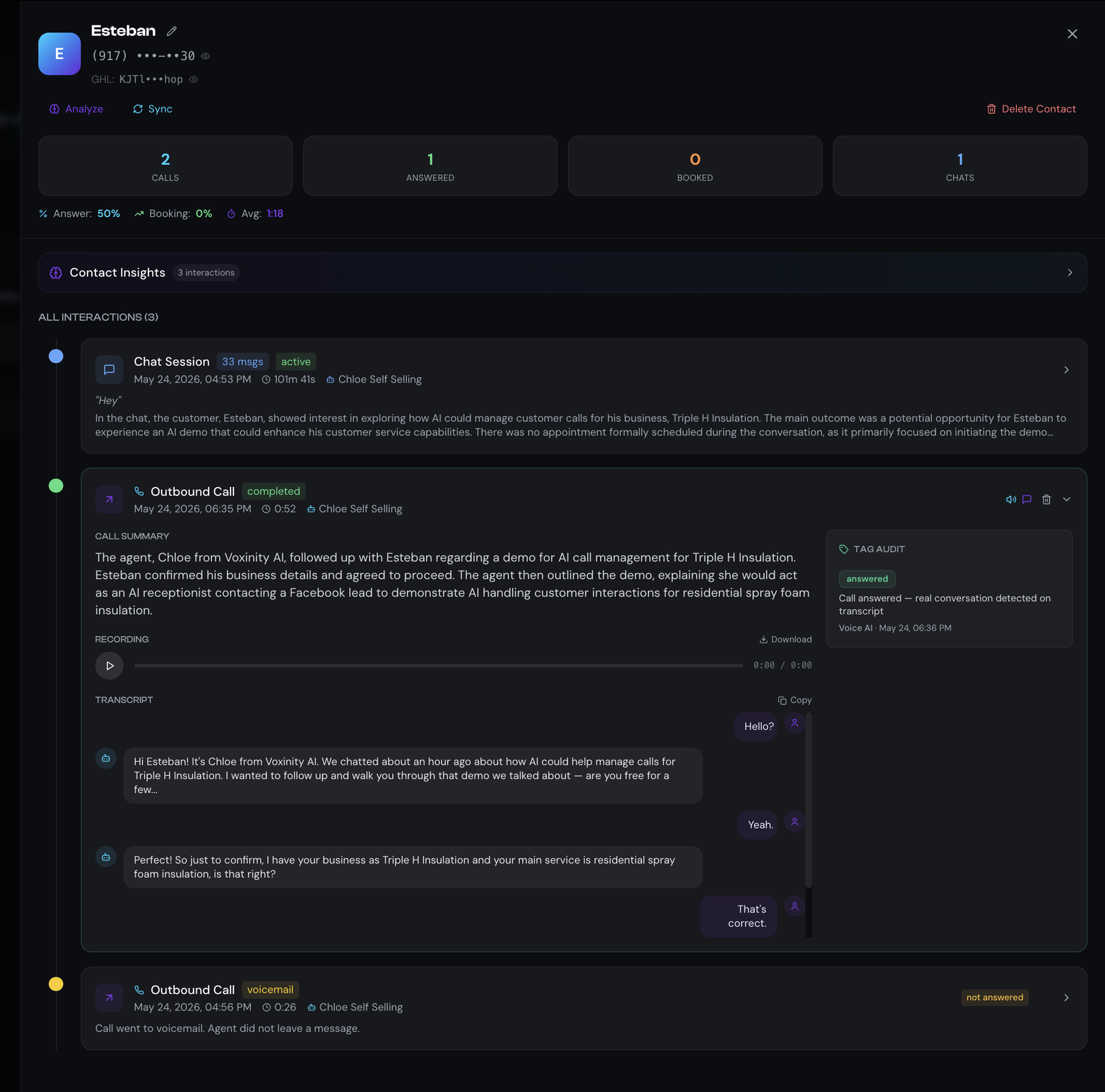
Contact Timeline showing Esteban's record with 2 calls, 1 answered, 0 booked, 1 chat, an Outbound Call with TAG AUDIT card displaying the 'answered' tag explaining 'Call answered — real conversation detected on transcript', plus a voicemail call below with 'not answered' badge
Real Contact Timeline view. The TAG AUDIT card on the right of each call tells you exactly why Voxinity applied (or skipped) each outcome tag.

The 5 outcome tags Voxinity applies

Auto-applied tags (truth source for analytics)
✅ answered
The call was picked up by a human AND a real conversation was detected on the transcript. This is the tag that drives your Answer Rate metric.
📭 not answered
The call rang out, hit voicemail, or was rejected. If the AI left a voicemail, the call summary will note it. This drives your No-Answer Rate.
📅 ai voice appointment booked
During a voice call, the AI ran book_appointment successfully and a calendar slot was confirmed. This is the ONLY tag that counts toward your voice Booking Rate.
💬 ai chat booked
During a chat session (SMS / WhatsApp / IG / FB / widget), the AI ran book_appointment successfully. This is the ONLY tag that counts toward your chat Booking Rate.
🚫 voxinity dnd blocked
An outbound call was attempted but blocked because the contact has DND on 'Calls & voicemail' (or 'DND All Channels') in their LeadConnector DND tab. The call never reached Twilio, so the user was never disturbed — but you have an auditable record.

Every AI tag action appears in TAG AUDIT (new — Feb 2026)

Beyond the 5 outcome tags, TAG AUDIT now logs EVERY tag the AI added or removed during the conversation in chronological order — including custom tags fired by the agent's `add_tag` / `remove_tag` function tools. You see the full story of what the AI did, not just the outcomes.

What appears in TAG AUDIT
➕ Added (outcome tags)
Colored pill (green/amber/violet/teal) — one of the 5 outcome tags above.
➕ Added (custom AI tags)
Blue pill — a tag the AI applied via the `add_tag` function tool (e.g., 'qualified-lead', 'VIP', 'budget-confirmed'). The pill shows the exact tag name your AI applied.
➖ Removed (any tag)
Gray strikethrough pill — a tag the AI removed via the `remove_tag` function tool (e.g., AI moved them off 'cold-lead' once they showed interest).
⚠️ Failed (LeadConnector sync error)
Red ⚠️ pill — Voxinity tried to add/remove this tag but LeadConnector rejected it after 3 retries. Most common cause: expired OAuth. Re-connect under Settings → LeadConnector.
Why this matters
Before Feb 2026, only the 4 outcome tags showed in TAG AUDIT. Custom tags applied via the `add_tag` tool landed in LeadConnector but were invisible in Voxinity — so you couldn't easily debug why a workflow fired. Now every tag action is on the timeline, with the exact source (outcome / add_tag tool / remove_tag tool) labeled.
Why these tags drive everything
Your Dashboard's Answer Rate, Booking Rate, and 'BOOKED' badges in the Conversations list are NOT calculated from call durations or chat lengths — they're calculated by counting these exact tag strings on the contact. If a tag isn't applied, the metric doesn't move. This is intentional: no hallucinated 'booked' numbers.

Reading the TAG AUDIT card

Every call card in the Contact Timeline has a TAG AUDIT panel on its right side. It shows:

  • The tag badge itself (answered / not answered / booked).
  • A plain-English reason — e.g. 'Call answered — real conversation detected on transcript' or 'Call went to voicemail. Agent did not leave a message.'
  • The source — Voice AI or Chat AI — so you know which side of Voxinity applied it.
  • The timestamp — when the tag was written to LeadConnector.

If you don't see a TAG AUDIT card on a call, the AI didn't apply ANY outcome tag — usually because the call is still in progress or it ended in a failure state before the post-call analyzer ran.

Where these tags show up

Three surfaces
LeadConnector contact record
All 4 tags land on the contact in LeadConnector as native tags. Use them in workflows, smart lists, and pipelines exactly like any manual tag.
Contact Timeline → TAG AUDIT card
Per-interaction panel showing WHY Voxinity applied the tag, with the source and timestamp.
Conversations list & Dashboard
The BOOKED chip on a conversation card only appears when 'ai chat booked' or 'ai voice appointment booked' literally exists in tags_applied. Same for the Booked counters on your sub-account Dashboard.

Common questions

Tag-Audit FAQ
Call lasted 3 minutes but no 'answered' tag — why?
If the transcript never picked up real speech (silent line, IVR loop, broken audio), the post-call analyzer flags it as 'not answered' even with a long duration. Open the recording — if you hear silence, the system is right.
AI clearly booked the appointment, but no 'ai voice appointment booked' tag
Means book_appointment did not return a confirmed slot ID — usually because the calendar tool isn't connected, the slot was already taken, or the AI gave up mid-flow. Re-check the agent → Tools → calendar binding.
I see BOTH 'answered' and 'ai voice appointment booked' on the same call
That's the gold-standard outcome — the call connected AND the AI booked. These add up to a 'qualified converted lead' metric in your reporting.
A chat went well but no 'ai chat booked' tag was applied
Booking didn't actually complete. Either the AI offered slots but the lead never picked one, or the lead picked one but book_appointment failed (calendar conflict, no available rep). Open the chat thread and look for a check_availability badge without a follow-up book_appointment SUCCESS.
Can I edit / remove these tags manually?
Yes — remove or rename them in LeadConnector anytime. But: your Voxinity analytics will instantly stop counting that interaction. The tags are the source of truth for the metrics.

The activation tag is different (and that's intentional)

Don't confuse outcome tags with the activation tag.

Activation tag vs Outcome tag
Activation tag (e.g. vox_agent_b06bd0ff57a2)
INPUT. You (or a workflow) apply this to a contact to TELL Voxinity 'this agent should handle this lead.' Without it, the AI never fires.
Outcome tags (answered / not answered / booked)
OUTPUT. Voxinity applies these AFTER the interaction is done, based on what actually happened. You never set these manually.
Pro tip — use outcome tags to build smart workflows
Build LeadConnector workflows that trigger off the OUTCOME tags. Examples: 'not answered' → enroll in 24-hr SMS follow-up. 'ai voice appointment booked' → send confirmation email + add to pipeline 'Booked Consult'. 'answered' WITHOUT a booking tag → enroll in nurture sequence. This is where Voxinity stops being a phone bot and starts being a revenue engine.
Still have questions?
Reach our team — replies within 1 business day.
Contact Support